How to View and Share an STL File Online (No Software Needed)
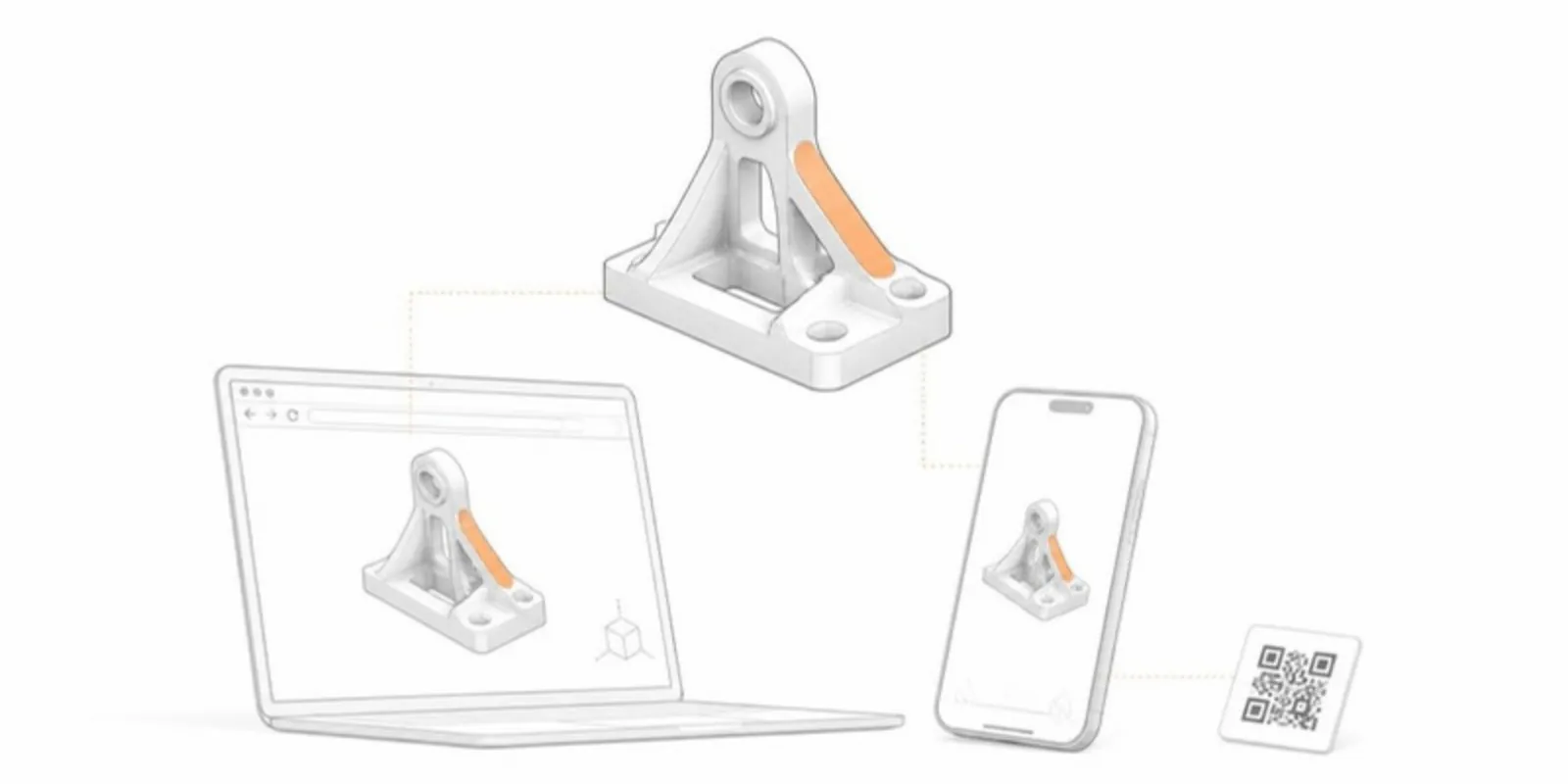
Someone sends you an STL file, or you need to send one. The usual answer is “open it in a slicer” or “install a CAD viewer”, which is fine for engineers and a dead end for everyone else. Here are the ways to view an STL online, and how to turn it into a link anyone can open.
Option 1: a quick local preview
If you only need to look at a file yourself, a browser-based STL viewer that renders the file locally is enough: drag the file in and rotate it. Your operating system may also have a built-in preview (Windows 3D Viewer, macOS Quick Look).
The limitation is that nothing is shared. The model lives on your computer, and the next person has to repeat the process with their own copy of the file.
Option 2: a link someone else can open
To show an STL to a colleague, reviewer, student, or the audience at a talk, you want a hosted viewer: the model lives at a URL, and anyone who opens it sees it in 3D without downloading anything.
With AcademicAR the steps are:
- Upload the
.stland choose its unit (mm, cm, or m) and, optionally, a colour (what the conversion does is explained in STL to GLB). - The file is converted to an optimized GLB (plus a USDZ for iPhone AR).
- Copy the viewer link or download the QR code.
Whoever opens the link can rotate, zoom, and pan, and on a phone tap View in AR to place the model on their desk at its real size.
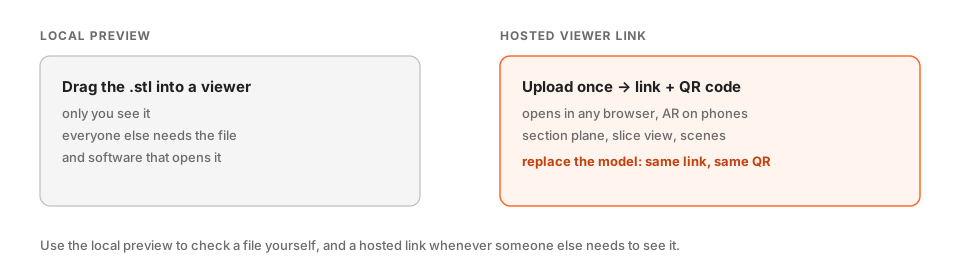 A local preview is for you; a hosted link is for everyone else.
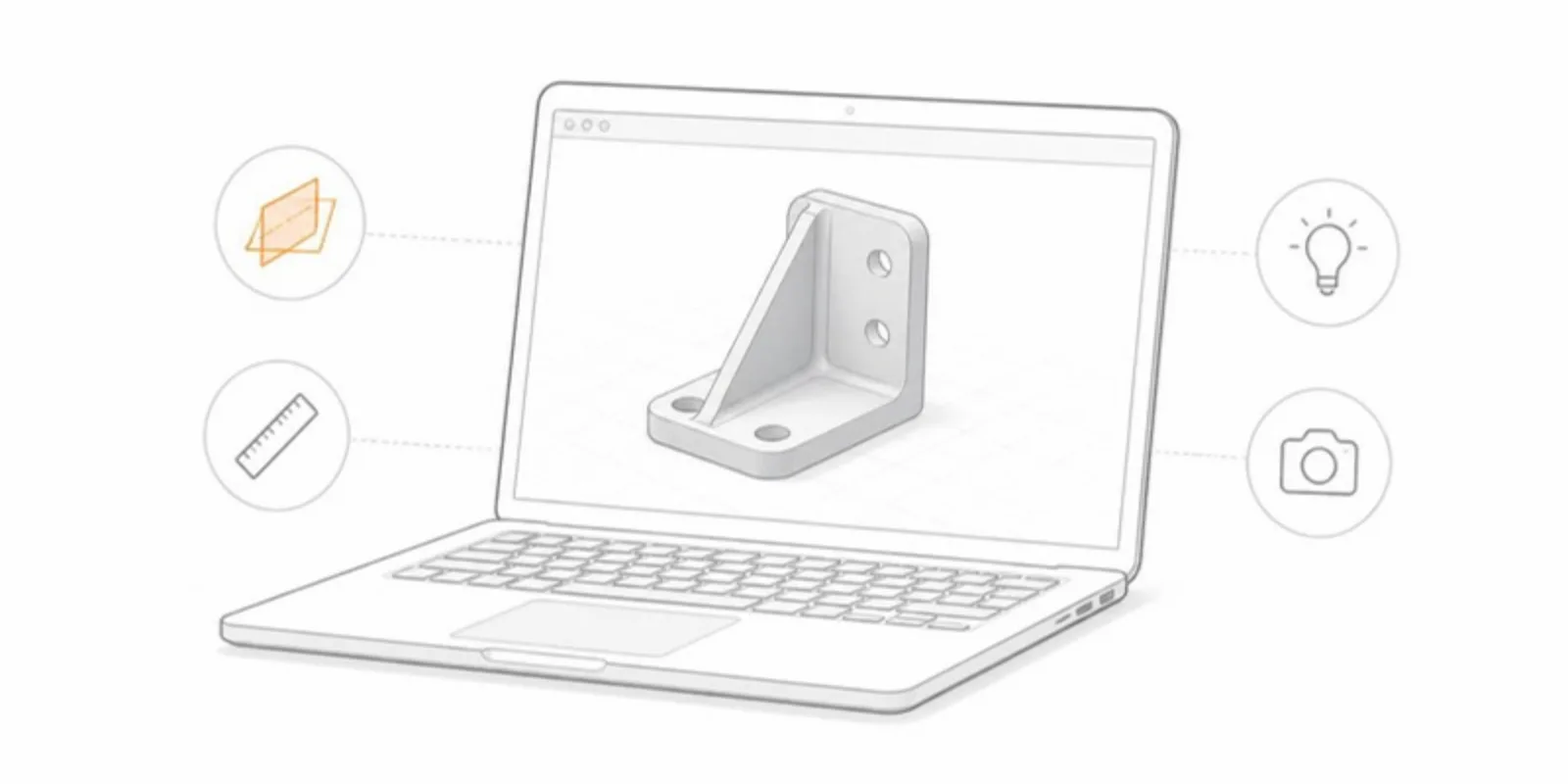
What readers can do in the viewer
Beyond turning the model around, the viewer includes tools that are useful for real work:
- Section plane to cut through the model along any axis and look inside.
- Slice view, which shows that cut as a clean 2D cross-section with a snapping two-point measure.
- Annotations and saved scenes, so you can point at a feature and guide readers through the model in a fixed order.
- Lighting presets and a light or dark background to suit the model.
- Screenshots of the current view.
A link that survives updates
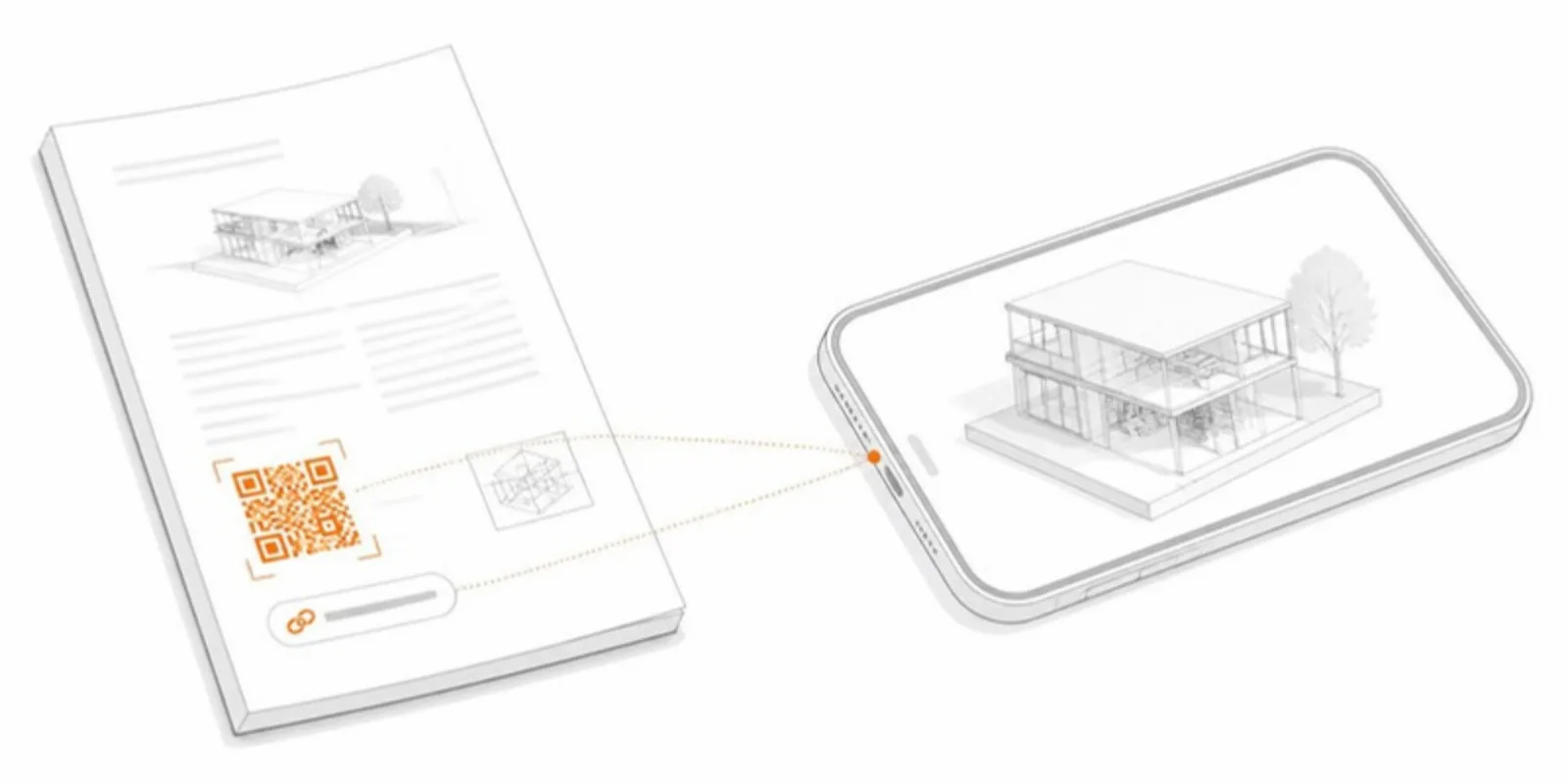
A common problem with shared files is versioning: you fix the model and the copy everyone has is now outdated. On AcademicAR you can replace the model while the link and QR code stay the same, so a QR printed on a poster or in a thesis keeps pointing at the current version. If a model’s access window ends, the link shows a clear notice instead of an error page.
Where this helps
- Papers and theses: put the link or QR code in the figure caption.
- Teaching: share one link with a whole class instead of a file per student, or embed the viewer in a course page.
- Posters and talks: a QR code turns a still image into a model the audience can explore on their phones (see our poster QR guide).
- Collaboration: show a design or a segmentation to a co-author who doesn’t have the software you used.
Privacy note
If the STL comes from patient imaging, make sure it is anonymised and that you have consent and ethics approval to publish it. Faces reconstructed from head CT or MRI can be identifying even without any metadata.
Frequently asked questions
Can I view an STL file online without installing software?
Yes. A browser-based viewer previews the file on your own computer, and a hosted viewer gives you a link that anyone can open in a browser.
Do people need an account to open the link?
No. The public viewer opens without signing in, in any modern browser, and in AR on a phone.
What happens to the link if I fix the model?
Replace the model and the link and QR code stay the same, so printed QR codes keep pointing at the current version.
Create a free account to share your STL as a link and QR code.
Related guides
-
How to Run a 3D Demo in a Conference Talk or Thesis Defence
Plan a live 3D demo that works: save scenes, rehearse a tour, put a QR code on a slide so the audience can open the model, and prepare...
-
How to View a 3D Model in AR Without an App (iPhone and Android)
Open a 3D model in augmented reality from a link or QR code with nothing to install: how AR Quick Look and Scene Viewer work, which...
-
How to Share a Photogrammetry or LiDAR Scan as a 3D Link and AR Model
Export your Polycam, RealityScan, Metashape or Meshroom scan the right way (GLB, or OBJ with its textures), keep it light, set the real...