How to Embed a 3D Model on a Website, LMS, or Lab Page
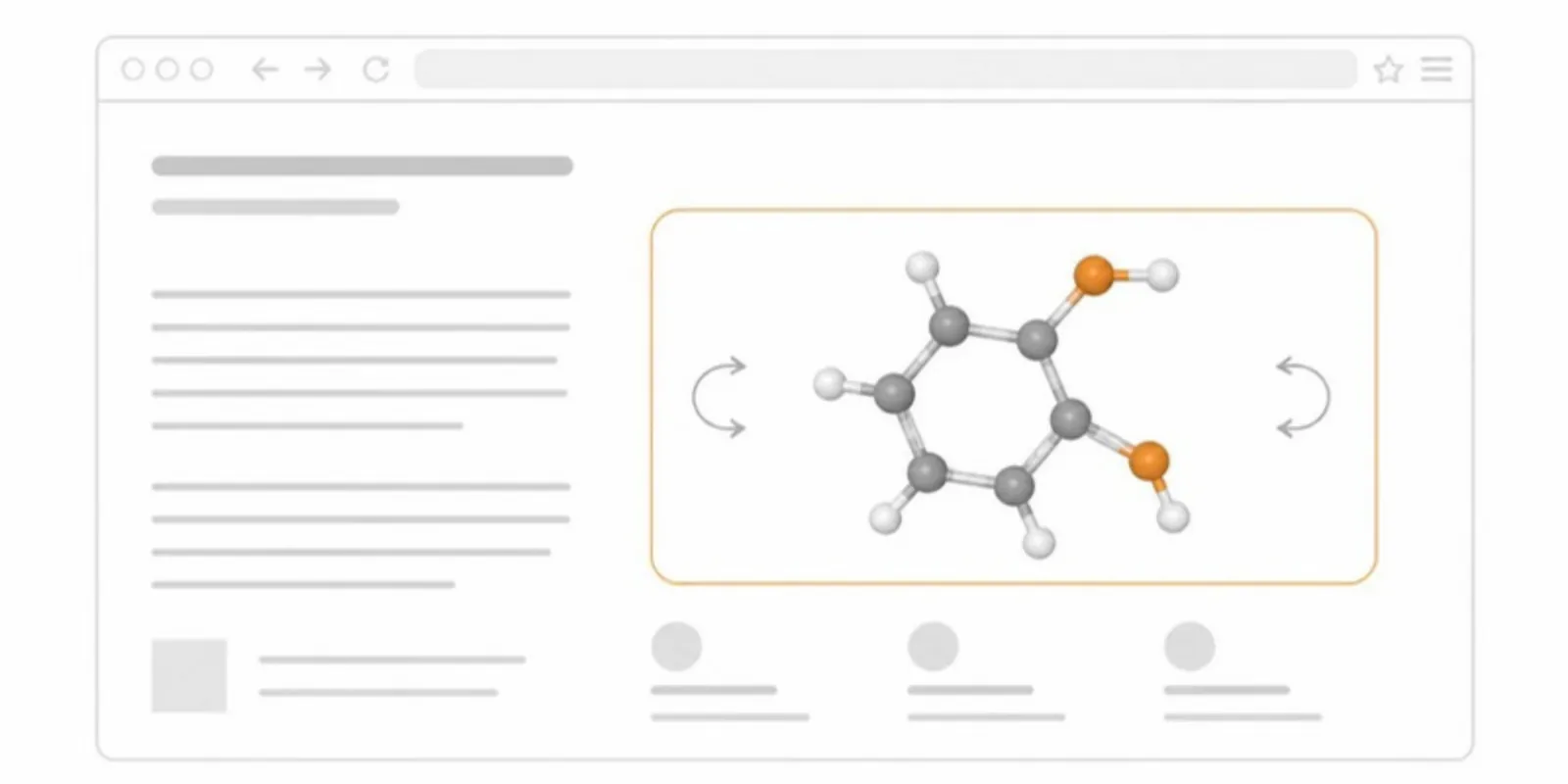
A lab website, a course page, or a project site is a natural home for the 3D models behind your research. There are two practical ways to put one there: build the viewer yourself, or embed a hosted viewer. Here’s how each works and when to pick which.
Option 1: self-host with model-viewer
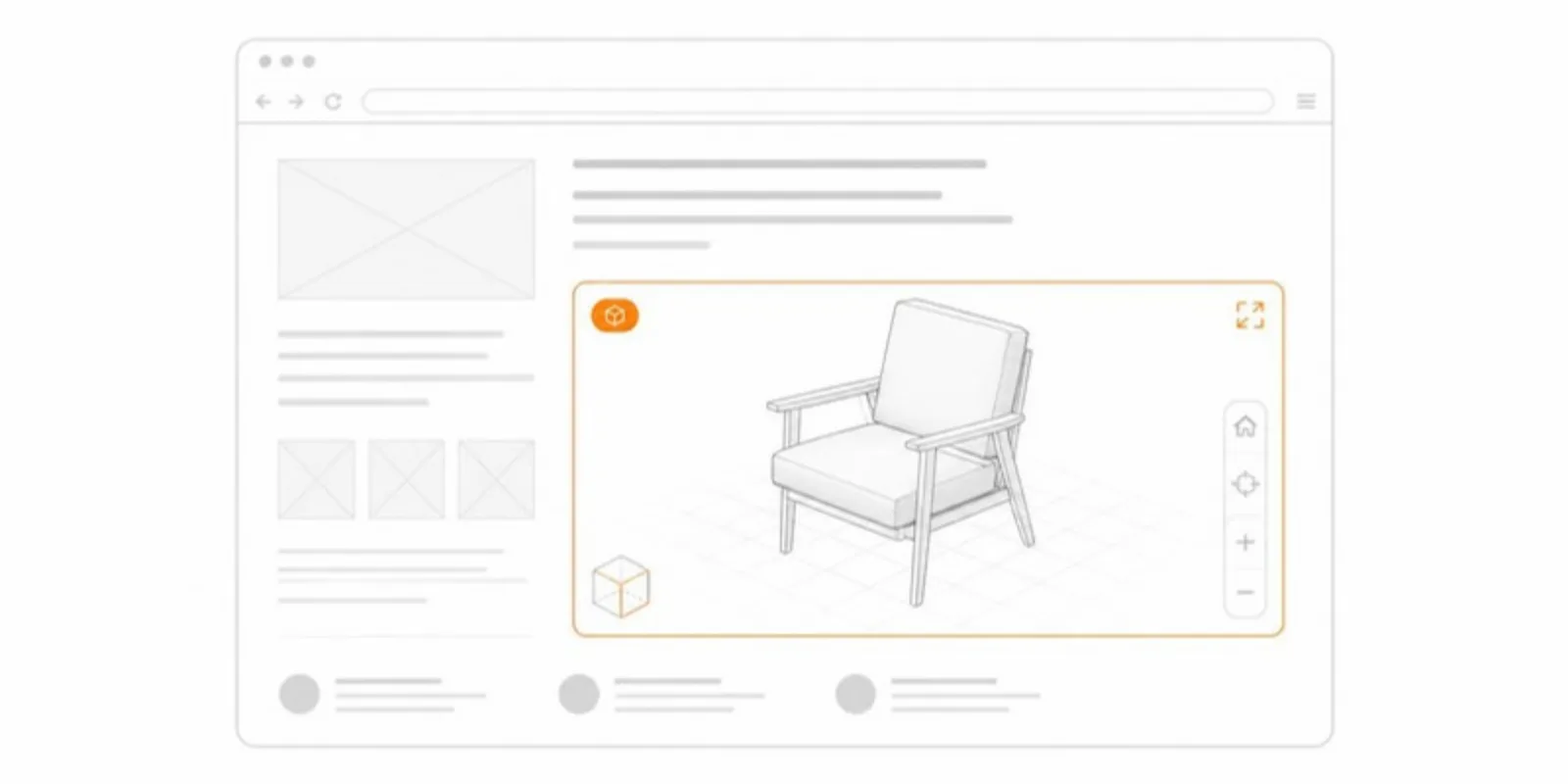
Google’s open-source <model-viewer> web component is the standard way to show
a GLB on a web page. The minimal version is two lines:
<script type="module" src="https://ajax.googleapis.com/ajax/libs/model-viewer/4.3.0/model-viewer.min.js"></script>
<model-viewer src="model.glb" camera-controls ar alt="A 3D model"></model-viewer>
This works well if you control the site and are comfortable with HTML. You are then responsible for:
- Converting your source files to an optimized GLB (and compressing them),
- Producing a USDZ if you want AR on iPhones (
ios-src), - Hosting the files with the right content types and caching,
- Updating every page by hand when the model changes.
Option 2: embed a hosted viewer
If your site is WordPress, Squarespace, Google Sites, a university CMS, or an LMS such as Moodle or Canvas, you often can’t add scripts, but you can paste an iframe. A hosted viewer gives you an iframe that already handles conversion, compression, AR, and updates.
With AcademicAR:
- Upload the model (GLB, STL, OBJ, FBX, STEP, or a medical scan or segmentation).
- On the project page, click Embed next to the model. This copies an iframe snippet like:
<iframe src="https://academicar.com/view/<model-id>?embed=true"
        width="100%" height="480" style="border:0;border-radius:8px"
        allow="xr-spatial-tracking; fullscreen" allowfullscreen loading="lazy"></iframe>
- Paste it into an HTML or embed block on your page.
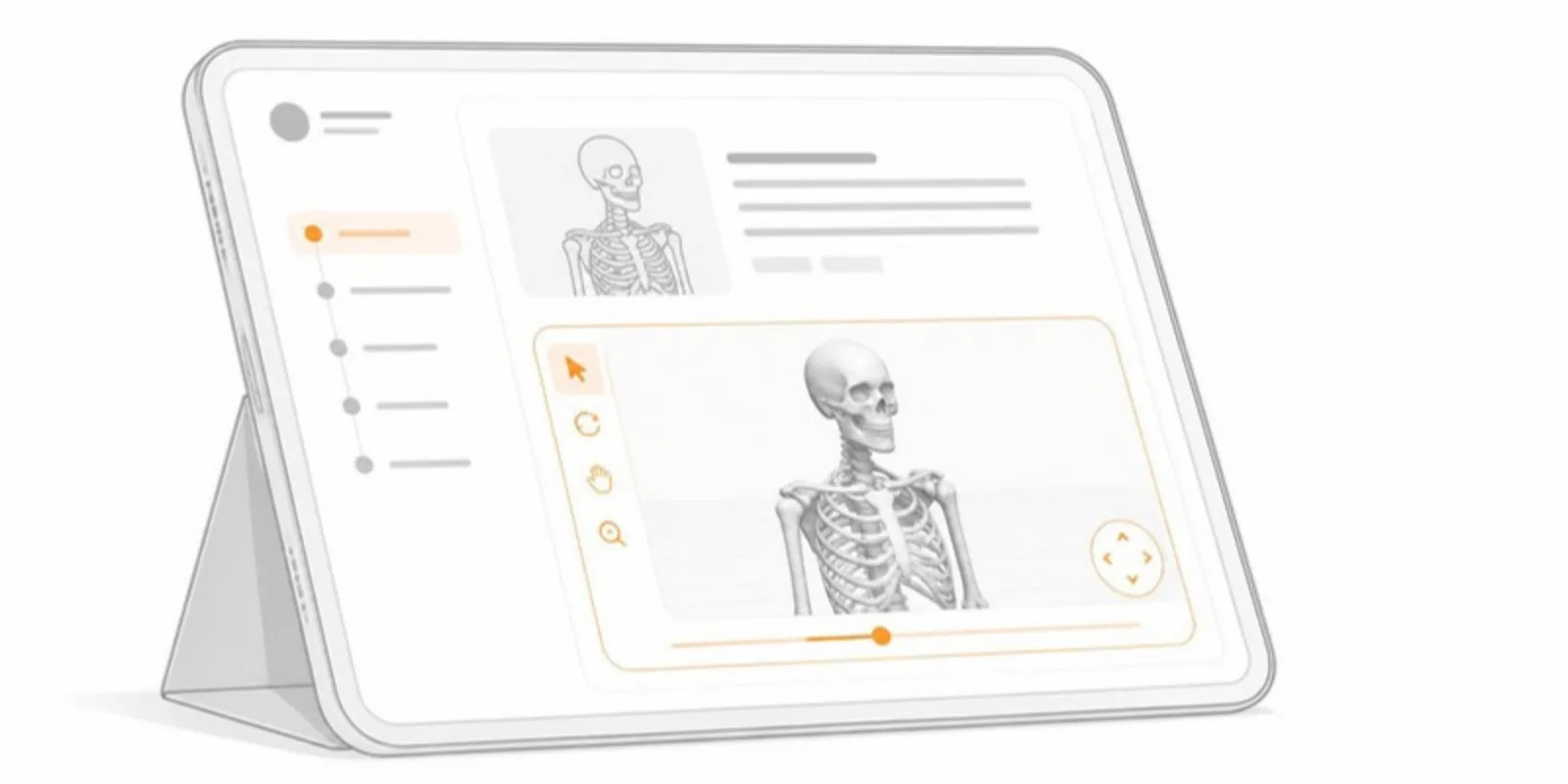
Visitors can rotate and zoom the model in the page, open it full screen, and open it in AR on their phones. If you later replace the model, every page that embeds it shows the new version, with no edits on your side.
Which should you choose?
| Self-hosted model-viewer | Hosted embed | |
|---|---|---|
| Setup | HTML and file hosting | Paste an iframe |
| Works in LMS / CMS without scripts | Rarely | Yes |
| Conversion from STL, STEP, DICOM | Do it yourself | Automatic |
| iPhone AR (USDZ) | Generate it yourself | Automatic |
| Layers, section plane, slice view | Build it yourself | Included |
| Updating the model | Re-upload on every site | Replace once |
Self-hosting gives full control over look and code. A hosted embed is faster and easier to maintain, especially when the same model also appears in a paper, a poster QR code, and a course page, or in your slides (see 3D models in PowerPoint).
Tips for embeds that work well
- Give the iframe a descriptive
titlefor screen readers. The copied snippet includes the model name. - Use
loading="lazy"so pages with several models don’t load them all at once. - Keep the height at 400–600 px on desktop. On phones, the full-screen button gives readers more room.
- Add a short caption with what the reader should look for, just like a figure.
Frequently asked questions
Can I embed a 3D model in Moodle or Canvas?
Yes. Learning platforms usually block scripts but accept an iframe, so paste the copied embed code into an HTML or embed block.
Does AR work in an embedded viewer?
Yes. Visitors can rotate and zoom in the page, open it full screen, and open the model in AR on their phones.
Do I need to update the embed when the model changes?
No. Replace the model once and every page that embeds it shows the new version.
Create a free account, upload a model, and copy its embed code. See also AR for STEM education.
Related guides
-
How to Run a 3D Demo in a Conference Talk or Thesis Defence
Plan a live 3D demo that works: save scenes, rehearse a tour, put a QR code on a slide so the audience can open the model, and prepare...
-
How to View a 3D Model in AR Without an App (iPhone and Android)
Open a 3D model in augmented reality from a link or QR code with nothing to install: how AR Quick Look and Scene Viewer work, which...
-
How to Add a 3D Model to PowerPoint (and Let the Audience Explore It)
Four ways to put a 3D model in a PowerPoint presentation: native 3D models, rendered images, video, and a QR code that opens the model...