How to Open a GLB File on Desktop, iPhone, and Android
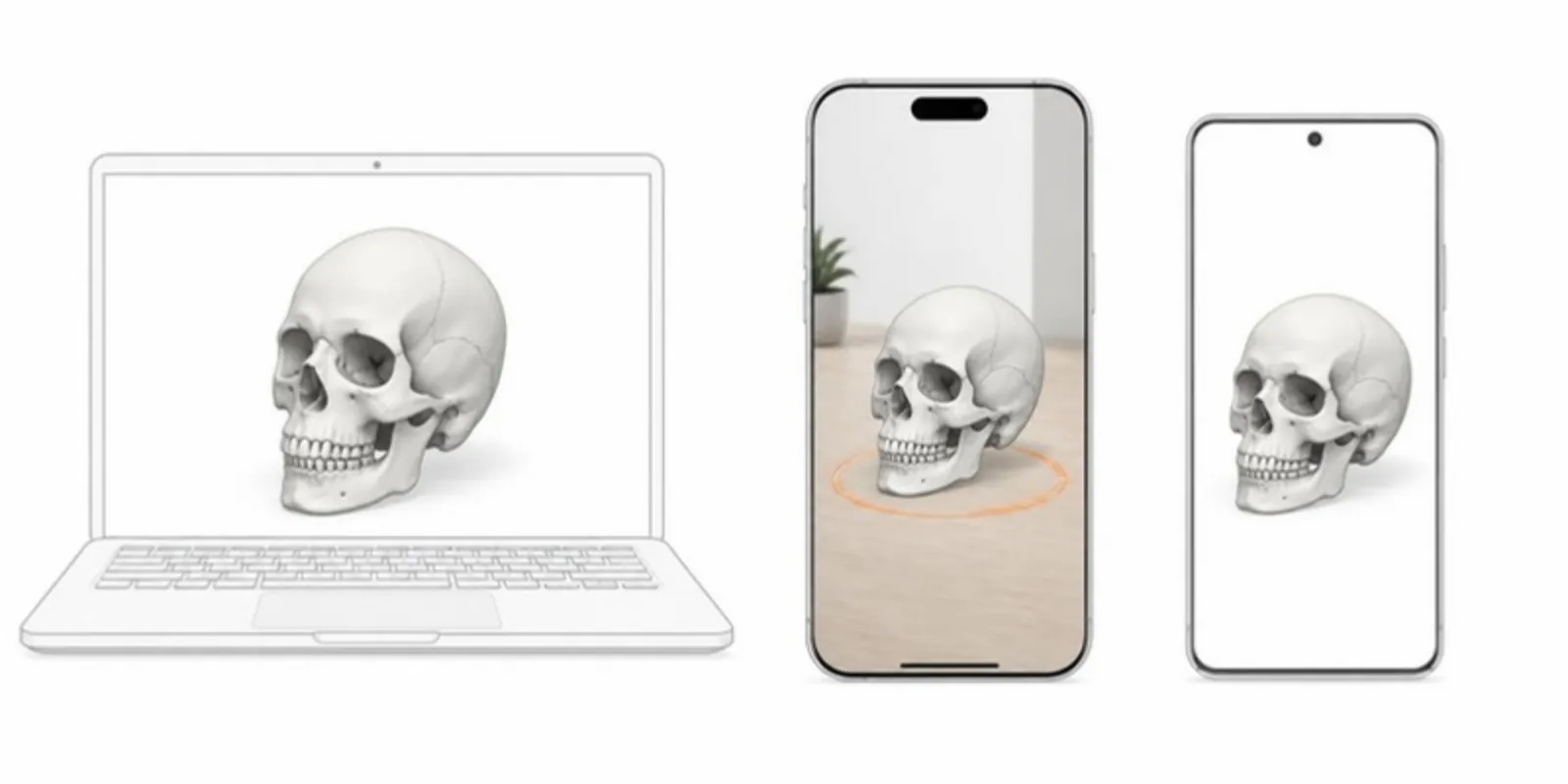
GLB has become the default format for 3D on the web, so more and more people
receive .glb files without knowing what to do with them. Here’s what the format
is and how to open it on each device.
What is a GLB file?
A GLB file is the binary, single-file version of glTF 2.0, an open standard
from the Khronos Group often called “the JPEG of 3D”. One .glb contains the
model’s geometry, materials, textures, and, where present, animations and a tree
of named parts. It is designed to load quickly in real-time viewers, which is why
browsers, game engines, and AR tools support it. For how it compares with STL,
OBJ, and FBX, see our 3D format guide.
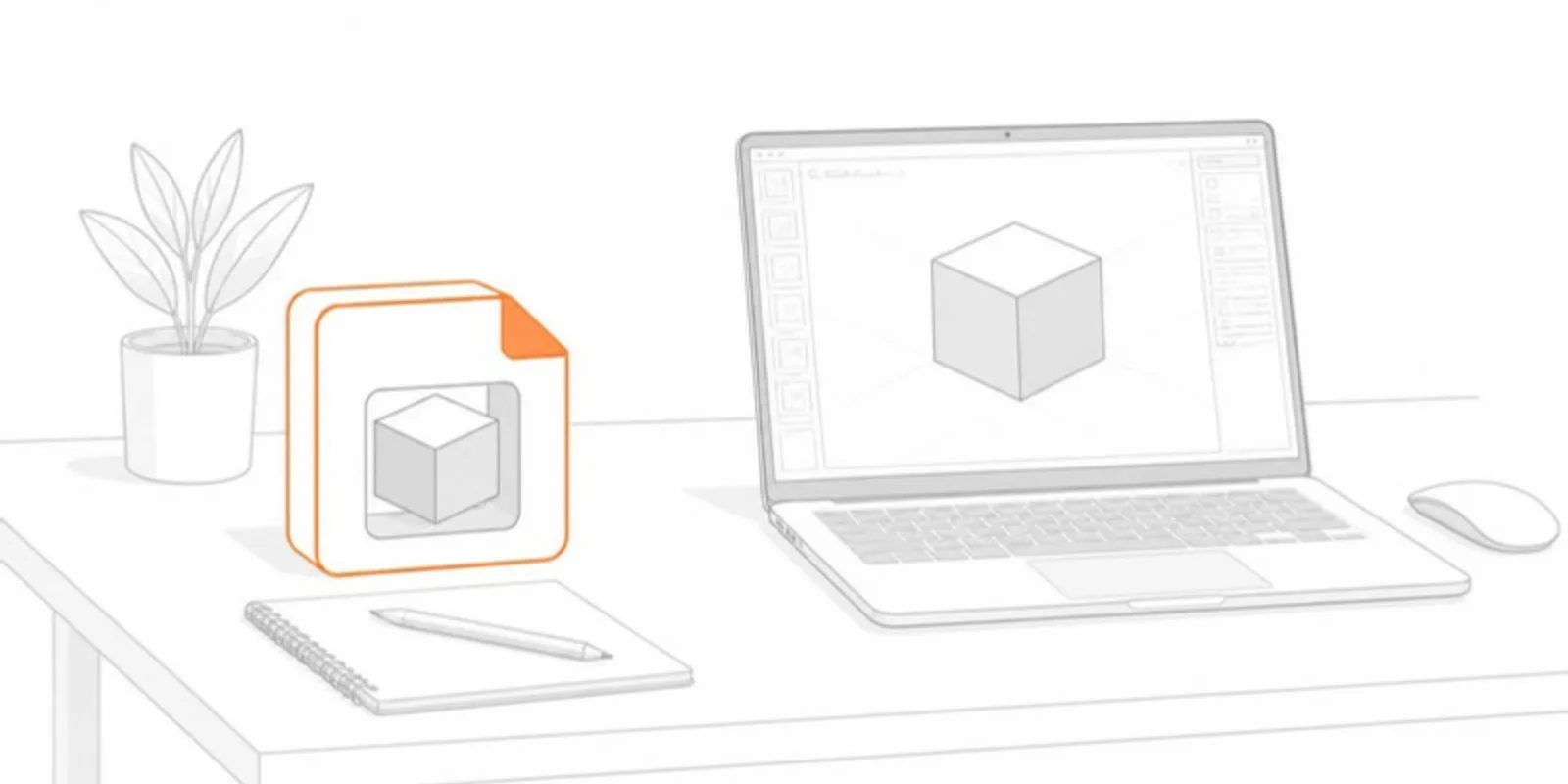
Opening a GLB on Windows and Mac
- Windows: Microsoft’s 3D Viewer app opens GLB where it is installed, and Microsoft 365 apps such as PowerPoint can insert GLB files as 3D models (see how to add a 3D model to PowerPoint).
- Mac: Apple’s built-in previews are built around USDZ rather than GLB, so use a browser-based viewer or a 3D app such as Blender, which imports glTF/GLB.
- Any computer: drag the file into a browser-based glTF viewer. This is the fastest option and needs no installation.
Opening a GLB on Android
Android’s Scene Viewer (part of Google Play Services for AR) displays GLB
models in 3D and in AR. Web pages built with Google’s <model-viewer> hand the
model to Scene Viewer when you tap the AR button.
Opening a GLB on iPhone and iPad
This is where most people get stuck. iOS AR Quick Look does not use GLB: it expects USDZ, Apple’s format. A GLB will display in a web viewer on an iPhone, but to place it in your room in AR you need a USDZ version of the same model (see GLB to USDZ for iPhone AR).
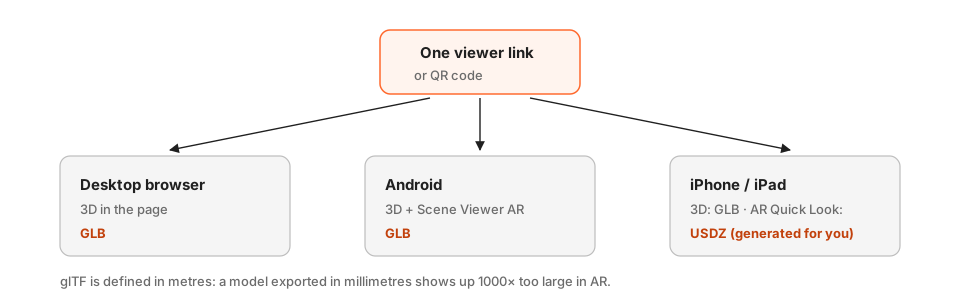 One link serves GLB to browsers and Android, and USDZ to iPhone AR.
Sharing a GLB so it opens everywhere
If the goal is for other people to see the model, the most reliable route is a
hosted viewer that handles every device for you. Upload the .glb to AcademicAR
and you get:
- an optimized GLB (Draco geometry compression, webp textures) that loads fast on mobile,
- a USDZ companion generated automatically, so View in AR works on iPhone and iPad as well as Android,
- a viewer link that opens in any browser, and a QR code for print,
- for multi-part GLBs, a Layers panel with one layer per part.
GLB units are kept as authored, so AR shows the model at the size it was modelled.
Common GLB problems
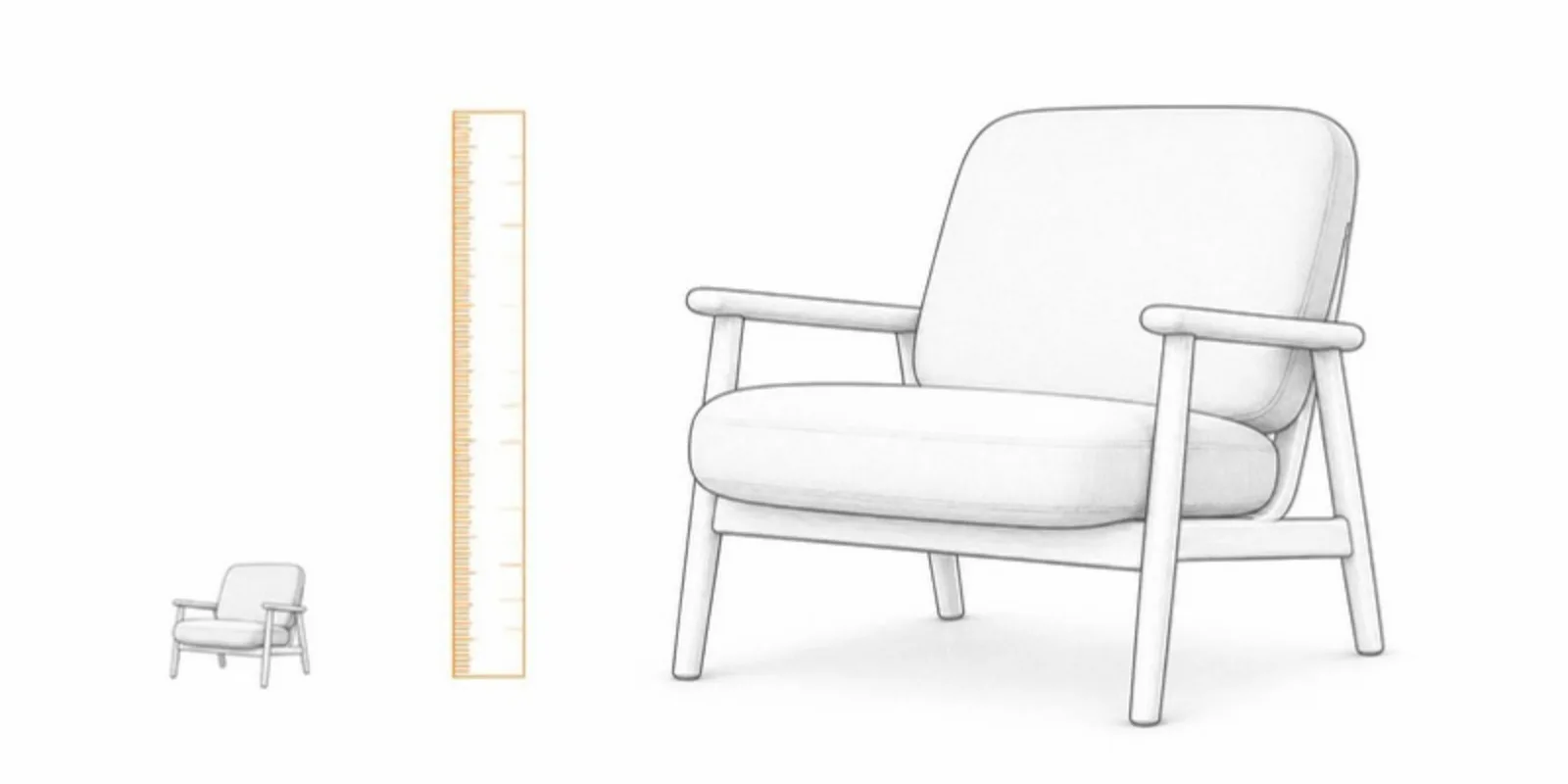
- The model is huge or tiny in AR: the exporter used the wrong unit. glTF is defined in metres, so a model exported in millimetres appears 1000 times too large. Fix the scale in the source application and re-export.
- Textures are missing: a
.gltffile references external images, while a.glbembeds them. Export as GLB (binary) to keep everything in one file. - The file is too large to share: compress geometry with Draco and textures with webp or KTX2, or let the upload optimizer do it.
Frequently asked questions
What is the difference between GLB and glTF?
They are the same standard. A .gltf file references external files such as images, while a .glb packs everything into one binary file, which is easier to share.
Can I open a GLB on an iPhone?
In a web viewer, yes. For AR, iOS needs a USDZ version of the model; AcademicAR generates one automatically when you upload a GLB.
Why is my GLB huge or tiny in AR?
glTF is defined in metres, so a model exported in millimetres appears 1000 times too large. Fix the scale in the source application and export again.
Upload a GLB and get a link that opens in 3D and AR on every device.
Related guides
-
GLB to USDZ: How to Show a 3D Model in AR on iPhone
Why iPhone AR needs USDZ instead of GLB, the free ways to convert GLB to USDZ, and how to share one link that opens AR on both iPhone...
-
How to Share Rhino, SketchUp and Revit Models as Interactive 3D and AR
Export your architecture model as a clean mesh, set the real size, name the layers (structure, walls, roof) and present with section...
-
How to Show a 3D Model at Real Size in AR (True-Scale Guide)
Set the real size of your model, open it in AR on iPhone or Android, and compare it to the real object: a practical true-scale workflow...