How to Convert STL to GLB (and Why It Matters for Sharing)
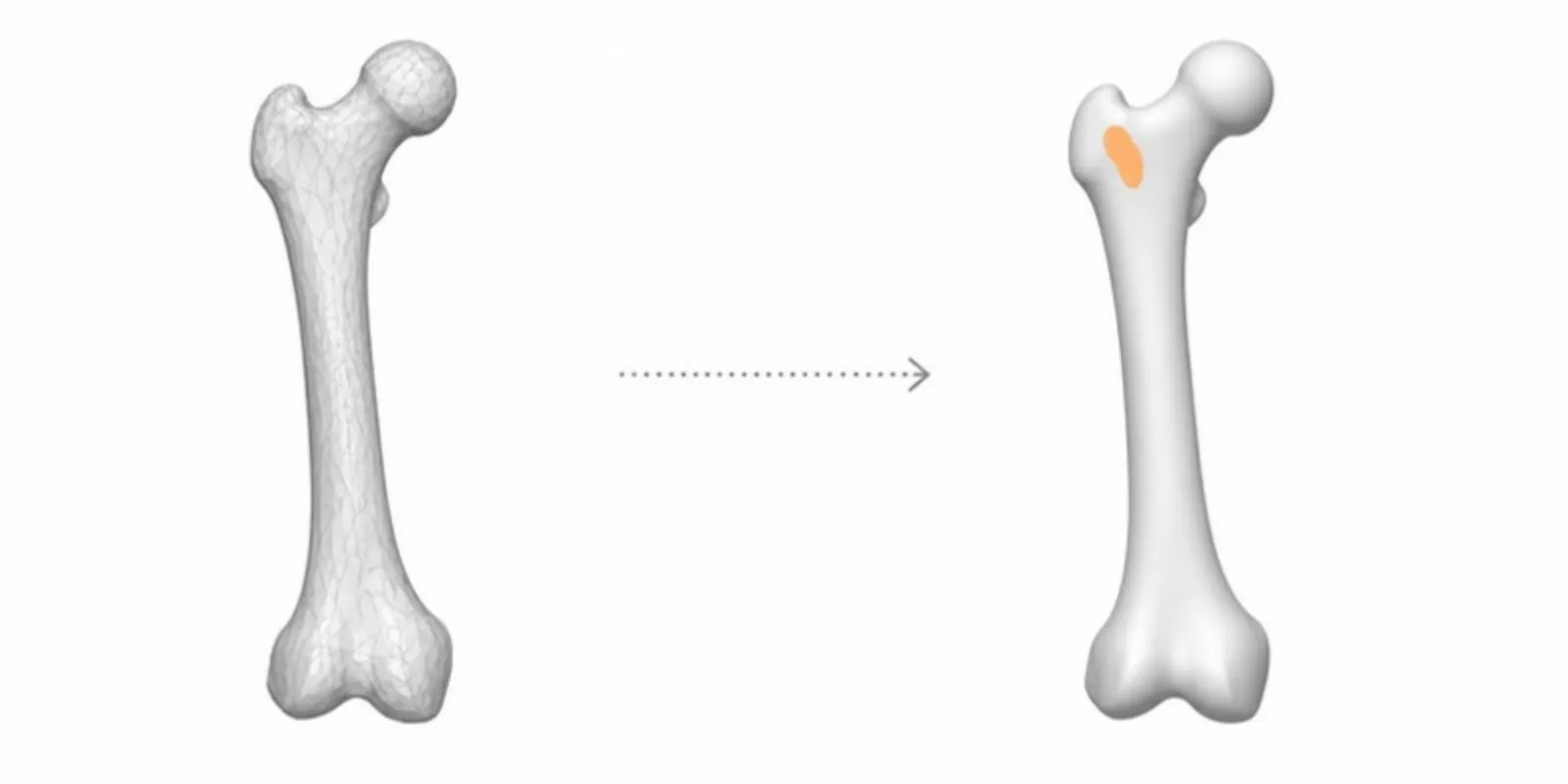
STL is the format almost every 3D pipeline can write: segmentation software, CAD, 3D scanners, and slicers for 3D printing. GLB is the format browsers, phones, and AR viewers want. If you need to show an STL to someone who doesn’t have CAD or printing software, converting it to GLB is the step in between. Here’s what the conversion actually does and how to get it right.
STL and GLB in one paragraph each
STL stores a list of triangles and nothing else: no units, no colour, no materials, no parts. Most STLs are also uncompressed, so a detailed scan or segmentation can easily be tens or hundreds of megabytes.
GLB is the single-file, binary form of glTF 2.0, the open standard built for
real-time 3D on the web. One .glb holds geometry, materials, textures, and a
scene of named parts, and it supports compression. Browser viewers such as
Google’s <model-viewer> and Android’s AR viewer load GLB directly.
For a longer comparison with OBJ, FBX, and glTF, see our 3D format guide. Starting from OBJ or FBX instead? See OBJ and FBX to GLB.
What a good STL to GLB conversion does
A conversion is more than rewriting triangles into another container. To end up with a model that looks right and loads fast, it should:
- Fix the scale. STL has no units, so the same file can mean 120 mm or 120 m. You have to say which one it is, or AR will show your femur the size of a building.
- Add a material. A plain STL renders as flat grey. Giving it a colour and a physically based material makes the shape readable.
- Clean up the mesh, merging duplicate vertices so the file doesn’t waste space, and add the texture coordinates some AR viewers expect.
- Compress the geometry. Draco compression typically shrinks mesh data many times over, which is the difference between a model that opens instantly on mobile data and one that never finishes loading.
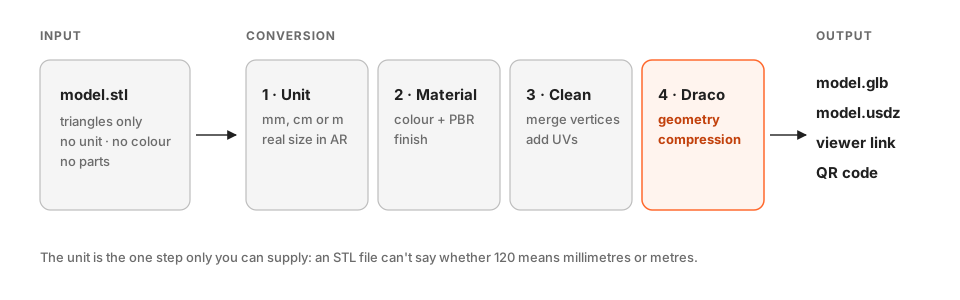 What the conversion adds to an STL, and what comes out.
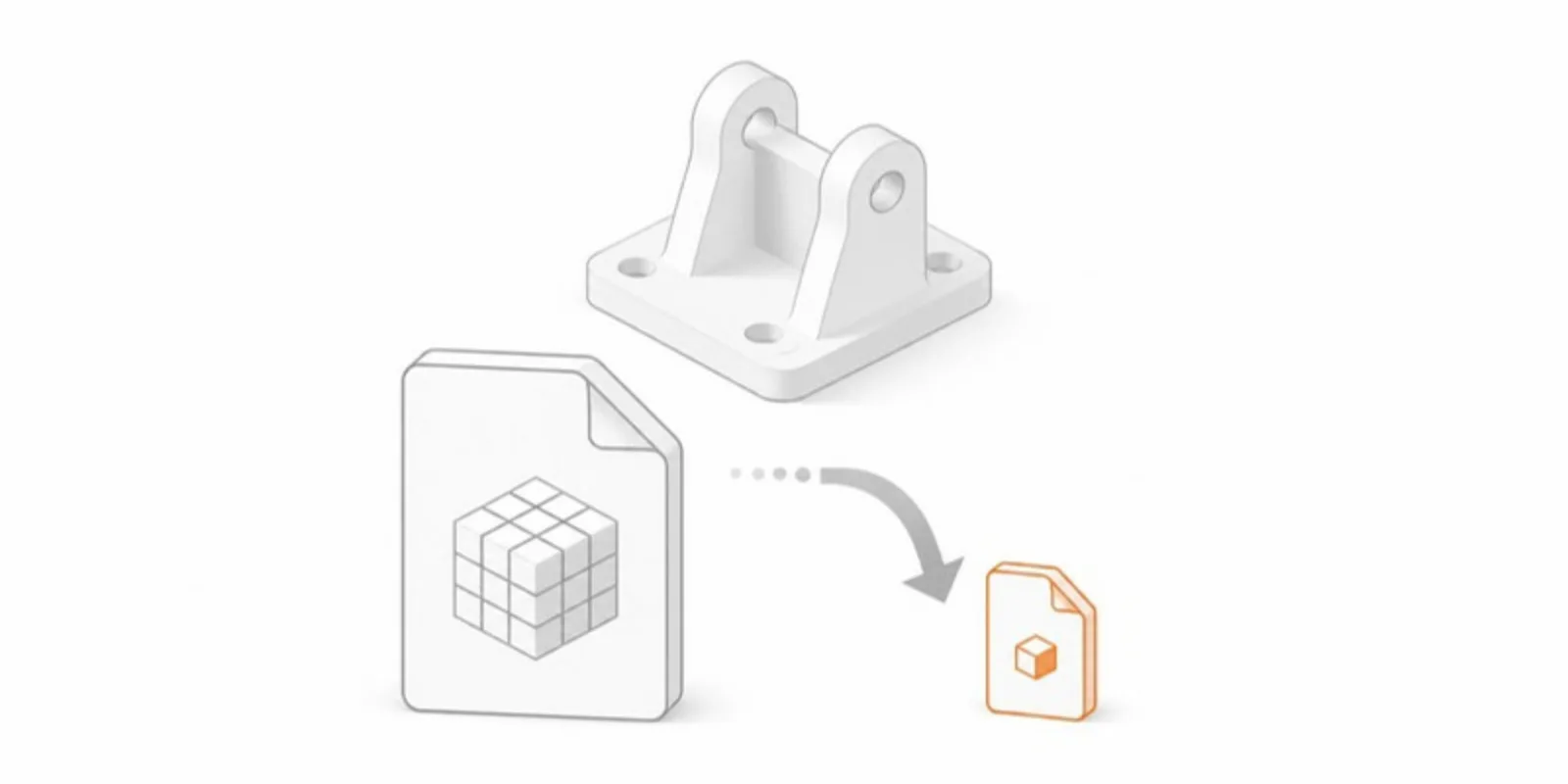
Converting STL to GLB with AcademicAR
- Create a project and choose Upload model.
- Select your
.stlfile and pick the source unit: millimetres, centimetres, or metres. This is required for STL and OBJ because the file can’t tell us. - Optionally set a model colour. Without one, the model is shown in a neutral material.
- Confirm the compliance checkbox (that you have the rights to publish the model and that any patient data is anonymised) and upload.
Conversion runs in the background. When it finishes you get:
- an optimized GLB with Draco-compressed geometry,
- a USDZ companion, so iPhones and iPads can open the model in AR (why iPhone needs USDZ),
- a public viewer link that works in any modern browser,
- a QR code that opens the same model on a phone.
There is nothing to install and no command line involved.
Tips for large STL files
- Decimate before uploading. For on-screen viewing, a few hundred thousand triangles is plenty. Tools like Meshmixer, Blender (Decimate modifier), or 3D Slicer’s surface toolbox can reduce counts by 80–90% with no visible loss.
- Split by part when it matters. One STL is one mesh. If readers should be able to hide or recolour parts separately, export the parts to a format that keeps them apart, such as STEP, FBX, or GLB, or upload a segmentation that keeps one label per structure.
- Check that the mesh is closed. Holes and flipped faces in an STL often come from the original export and are easiest to fix at the source.
Why not just share the STL?
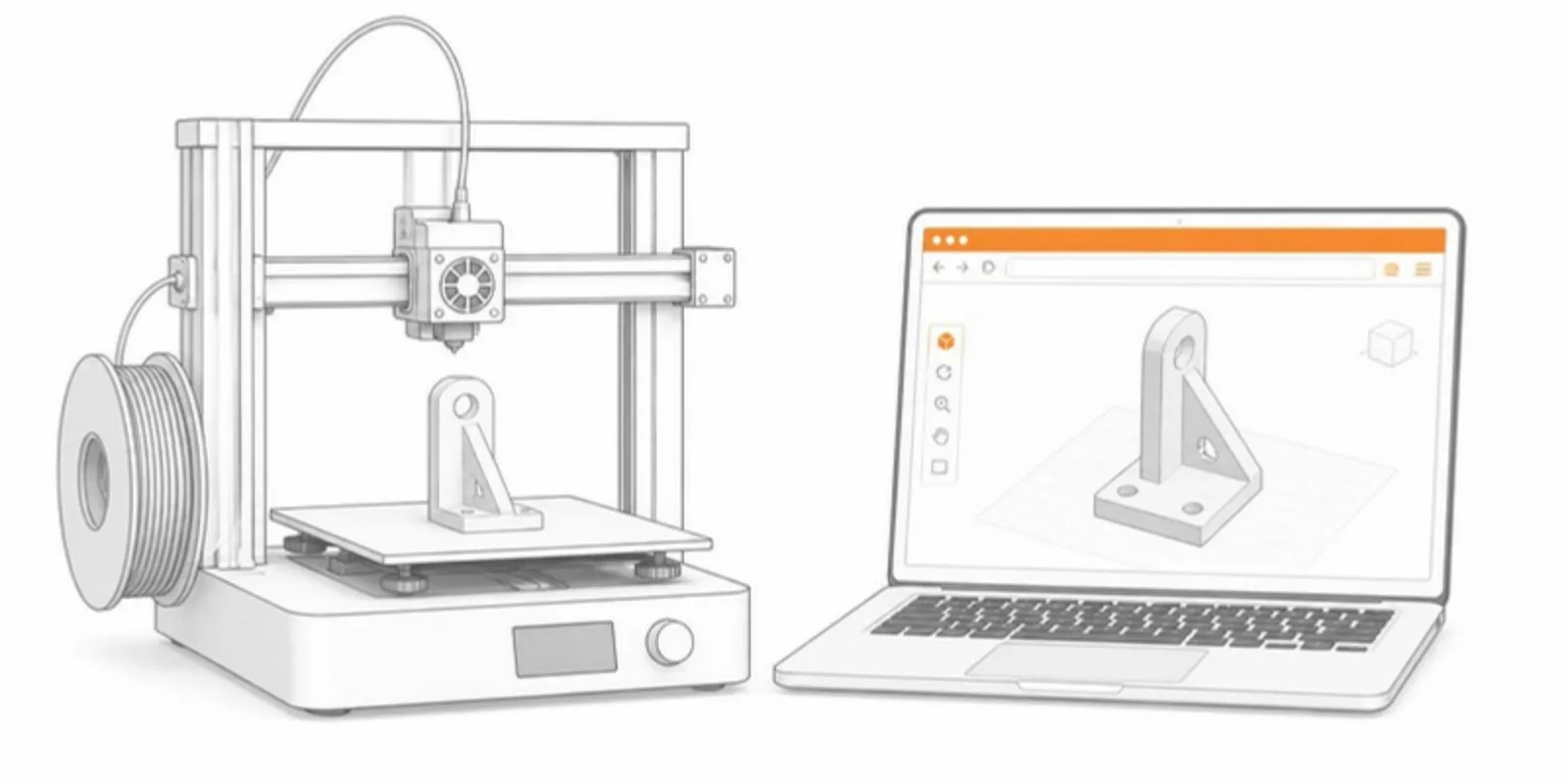
You can attach an STL to a paper’s supplementary material, and you should if readers might 3D print it. But very few readers will download it, find software that opens it, and set up the view. A GLB in a web viewer turns the same geometry into something they can rotate in a second, on any device, and place on their desk in AR. How sharing works is covered in how to view an STL online.
Frequently asked questions
Does an STL file have units?
No. STL stores only triangles, so the same numbers can mean millimetres or metres. Choose the source unit on upload so the model appears at its real size in AR.
Can I convert STL to GLB without installing software?
Yes. Upload the STL in the browser; conversion runs in the background and returns an optimized GLB, a USDZ for iPhone AR, a viewer link, and a QR code.
Will the GLB have colour?
STL carries no material, so you can set a model colour on upload. Without one, the model is shown in a neutral material.
Create a free account and convert your first STL to a shareable GLB with a viewer link and QR code.
Related guides
-
How to Reduce GLB File Size Without Losing Detail
Why GLB files get heavy and how to shrink them: decimation, Draco compression, texture resizing and pruning with free tools, plus the...
-
How to Convert OBJ and FBX to GLB Without Losing Textures
Convert OBJ (with its MTL and textures) and FBX to GLB for the web: what each format carries, the free tools, and how to keep materials,...
-
DICOM to STL: How to Turn a CT Scan into a 3D Printable Model
Convert DICOM CT or MRI to STL for 3D printing with free tools: anonymize, segment by Hounsfield threshold, clean the mesh, export, and...